Audit Trail
The Audit Trail provides a comprehensive log that captures all actions performed by platform users (both portal users and API Users). Users can apply specific filters to retrieve relevant audit information based on the selected criteria. This functionality is vital for monitoring user activities, ensuring accountability, and maintaining compliance with internal policies and regulations.
A screen capture of the Audit Trail is shown here.
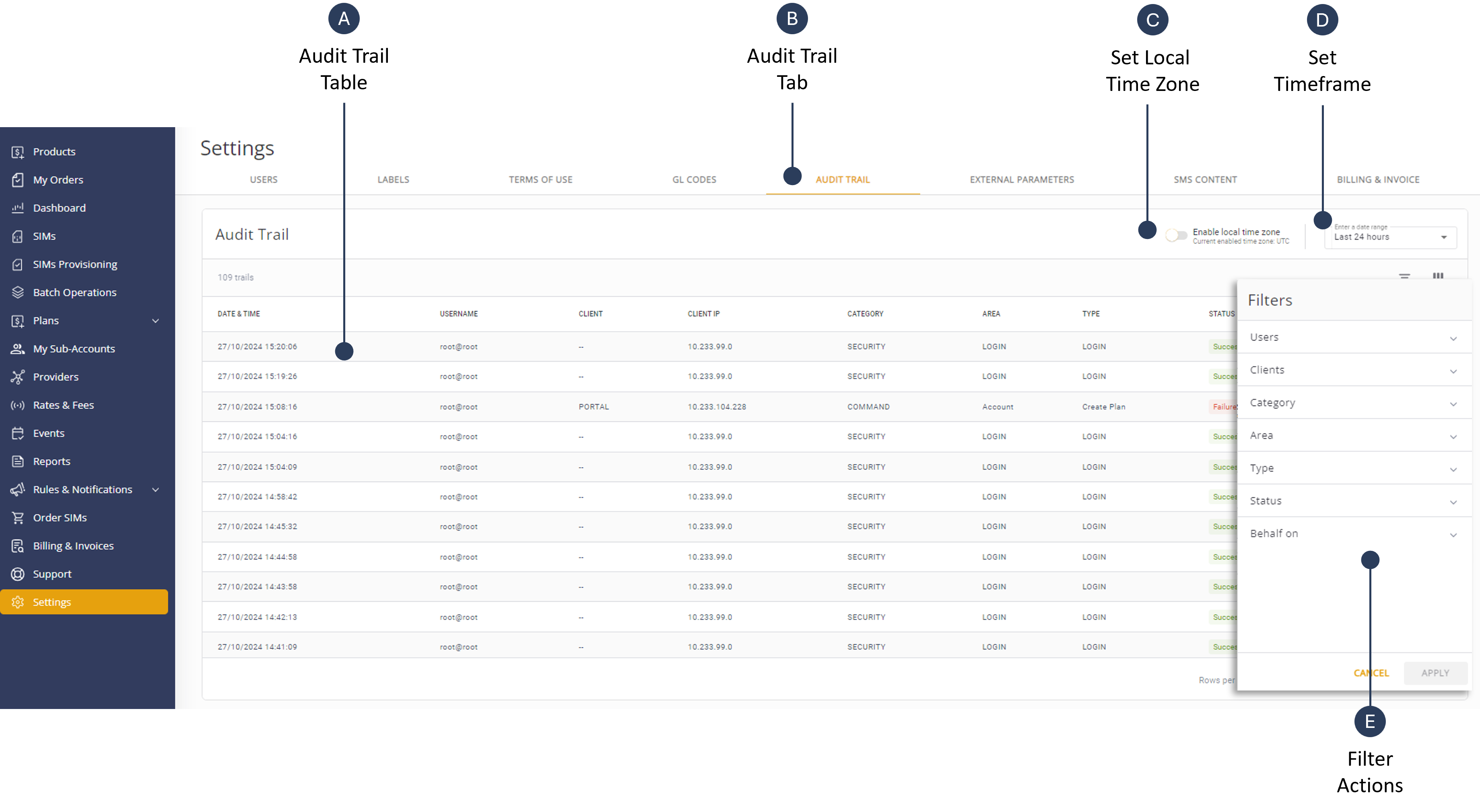
A description of the Audit Trail table columns is provided in this table.
| Name | Description |
|---|---|
| Date & Time | The timestamp of the action. |
| Username | The user who performed the action |
| Client | The client of the account on which the action was performed. |
| Client IP | The client IP. |
| Category | The activity category. |
| Area | The subject area of the action. |
| Type | The activity type performed. |
| Status | Success or Failure of the action. |
| Behalf on | The user on whose behalf the action was performed. |
Filter Audit Trail
To filter the audit trail table, do these steps:
- Select Settings from the sidebar menu.
- Select the Audit Trail tab to display the audit trail table.
- Click the Filter control to display the filter sidebar.
- Select one or more Users to display user activities.
- Select one or more Client type activities.
- Select one or more Category activities.
- Select one or more Area activities.
- Select one or more Type activities.
- Select the type of Status activity.
- Select the Behalf On user activities.
- Click Apply to update Audit Trail table display.
Set Time Frame
To set the Audit Trail timeframe, do these steps:
- Select Settings from the sidebar menu.
- Select the Audit Trail tab to display the audit trail table.
- Use the Filter control and click Apply to refine the audit trail activities.
- Select the appropriate Time Frame:
- Last 24 hours
- Last 7 days
- Last 30 Days
- Custom Dates
- Select the appropriate Local Time Zone:
- UTC
- Browser local time zone
NOTE: All timestamps are set to UTC time by default. To set the timestamp to your local time zone, turn on the Enable local time zone toggle: