Plan Depletion Rule
The Plan Depletion Rule automatically triggers a PCRF action when data consumption for a plan is depleted. This rule enables users to control data usage, preventing unexpected overages and ensuring a consistent user experience.
NOTE: For more information about Plan Depletion, refer to How Throttling Works.
The Create New Depletion Rule settings are shown here.
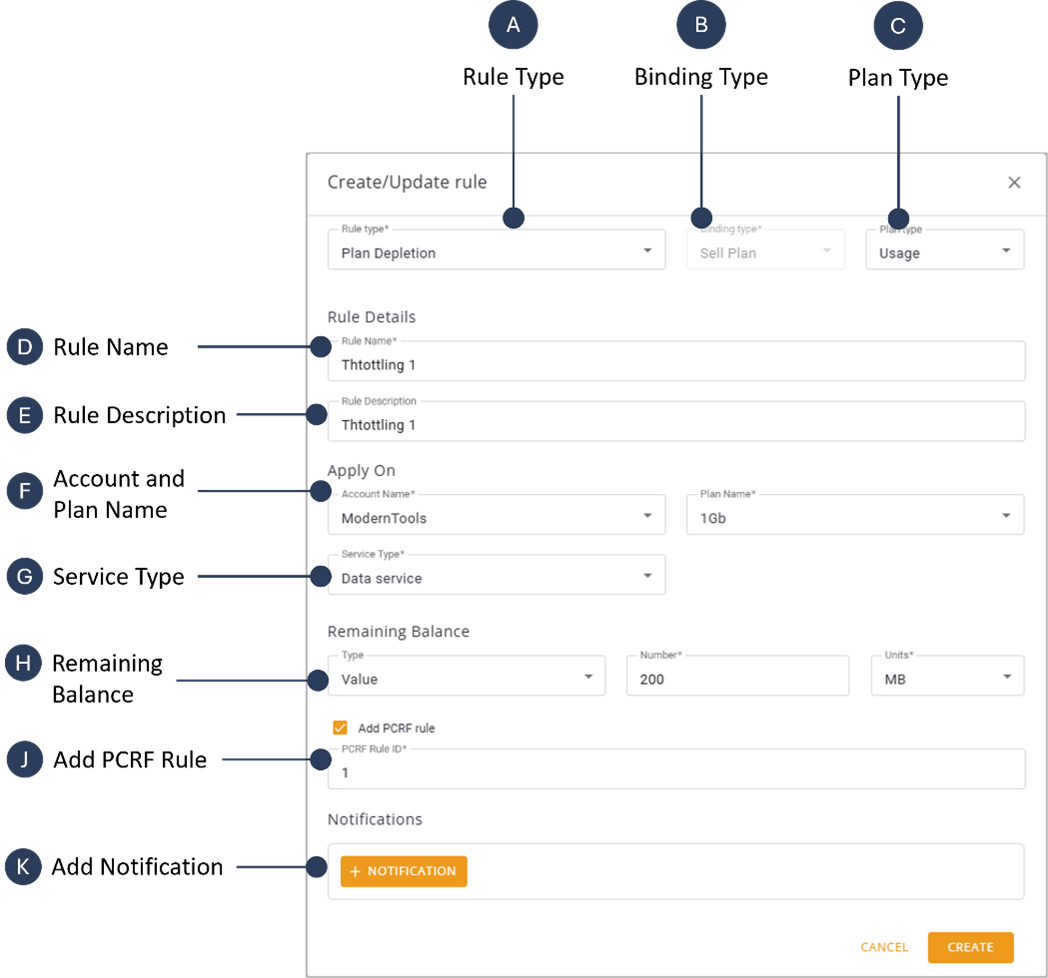
To create a new Depletion Rule, do these steps:
- Select Rules & Notifications | Rules on the sidebar menu to display the Rules screen.
- Click +Rule to display the Create/Update Rule dialog box.
- Select Depletion Rule from the list in the Rule Type field.
- Select Sell Plan from the Binding Type field.
- Select Usage from the Plan Type field.
- Enter a Rule Name in the Rule Details group.
- Enter a Rule Description in the Rule Details Group (optional).
- Select an Account Namee from the list displayed in the Apply On group.
- Select an Plan Name from the list displayed in the Apply On group.
- Check the Add PCRF Rule option.
- Add a system value in the PCRF Rule Field.
- Go to the Notify When Group and do these actions:
- Select a Service Type.
- Enter an appropriate value in the Remaining Balance field.
- Go to the Notifications Group and do these actions:
- Select a Notification Type.
- Select a Notification Channel.
- Click Create to activate the rule.