Reports History
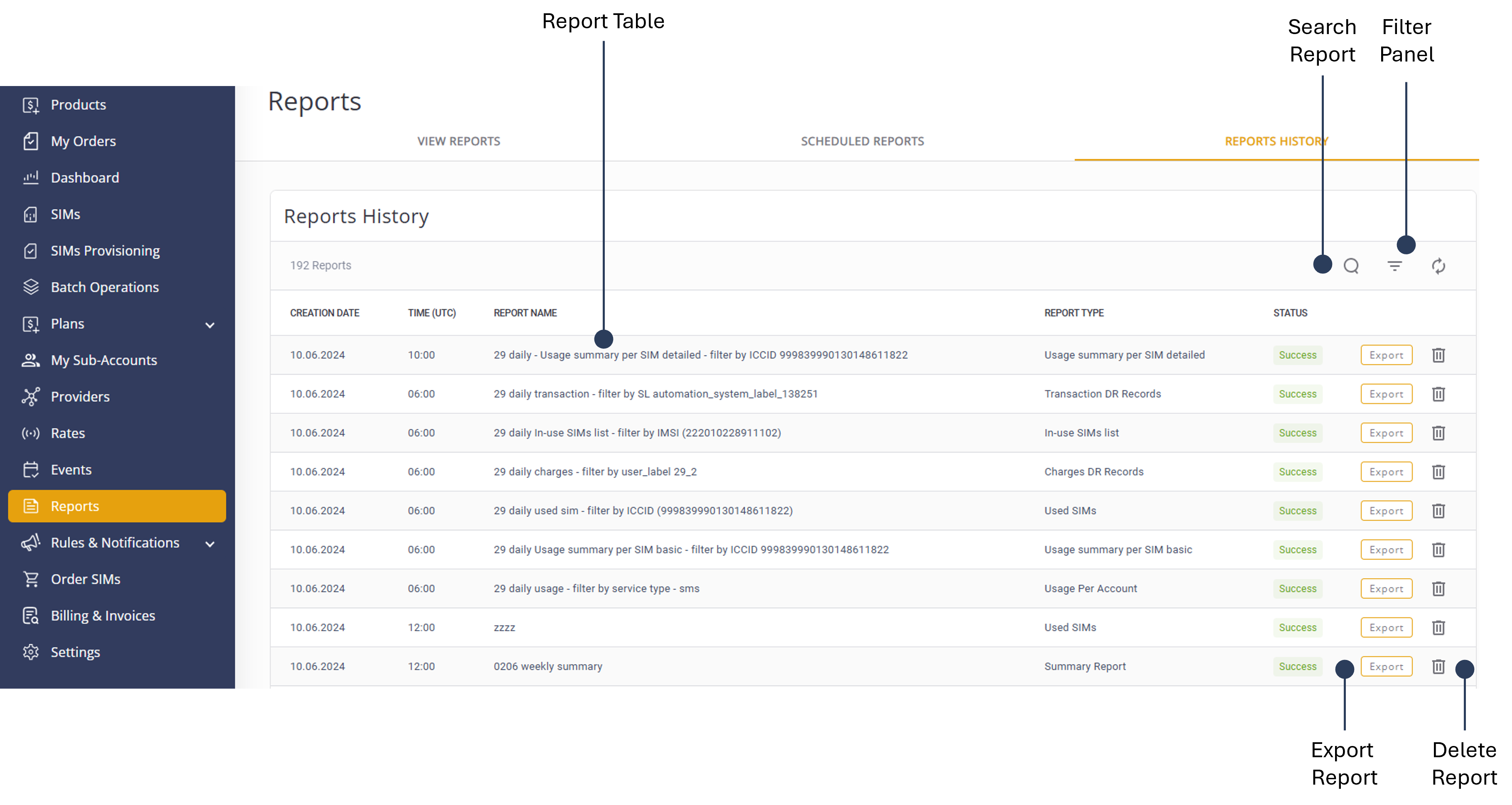
The Reports History module serves as a central archive for all users automated reports generated by the system. The Reports History module enables users to access, search filter, and export historical report data. Each report is listed as a table entry containing detailed information as well as options for users to delete or export the report data.
A screen capture of the Reports History page is shown here.
Filter Reports
To filter the reports table, do these steps:
- Select Reports from the sidebar menu.
- Select the Reports History tab to display a list of reports.
- Click the Filter icon to display the filter options.
- Select a Creation Date.
- Select a Report Type.
- Select the report Status.
- Click Apply to display the results in the Report History table.
Search Report
To search for a report, do these steps:
- Select Reports from the sidebar menu.
- Select the Reports History tab to display a list of reports.
- Click the Search icon to display the search box.
- Type a Report Name and click theRefresh icon to display the results in the reports table.
Export Report
To export a report, do these steps:
- Select Reports from the sidebar menu.
- Select the Reports History tab to display a list of reports.
- Navigate to a report listed in the table and click Export.
TIP: The report data is exported to a csv and located in the Downloads folder on your computer.
Delete Report
To delete a report, do these steps:
- Select Reports from the sidebar menu.
- Select the Reports History tab to display a list of reports.
- Navigate to a report listed in the table and click the Delete icon.
- Click Yes to confirm deletion of the selected report.
IMPORTANT: The platform automatically deletes old reports from the system. It is strongly recommended that you regularly export and locally archive all of the required reports to your local archive (each month).