Create Country Zones
An Availability Zone limits the usage of one or more SIMs to a specific location by designating the country and operator. Availability Zones can be attached to both Regular and Pool Plans.
A screen capture of the Country Zone page is shown here.
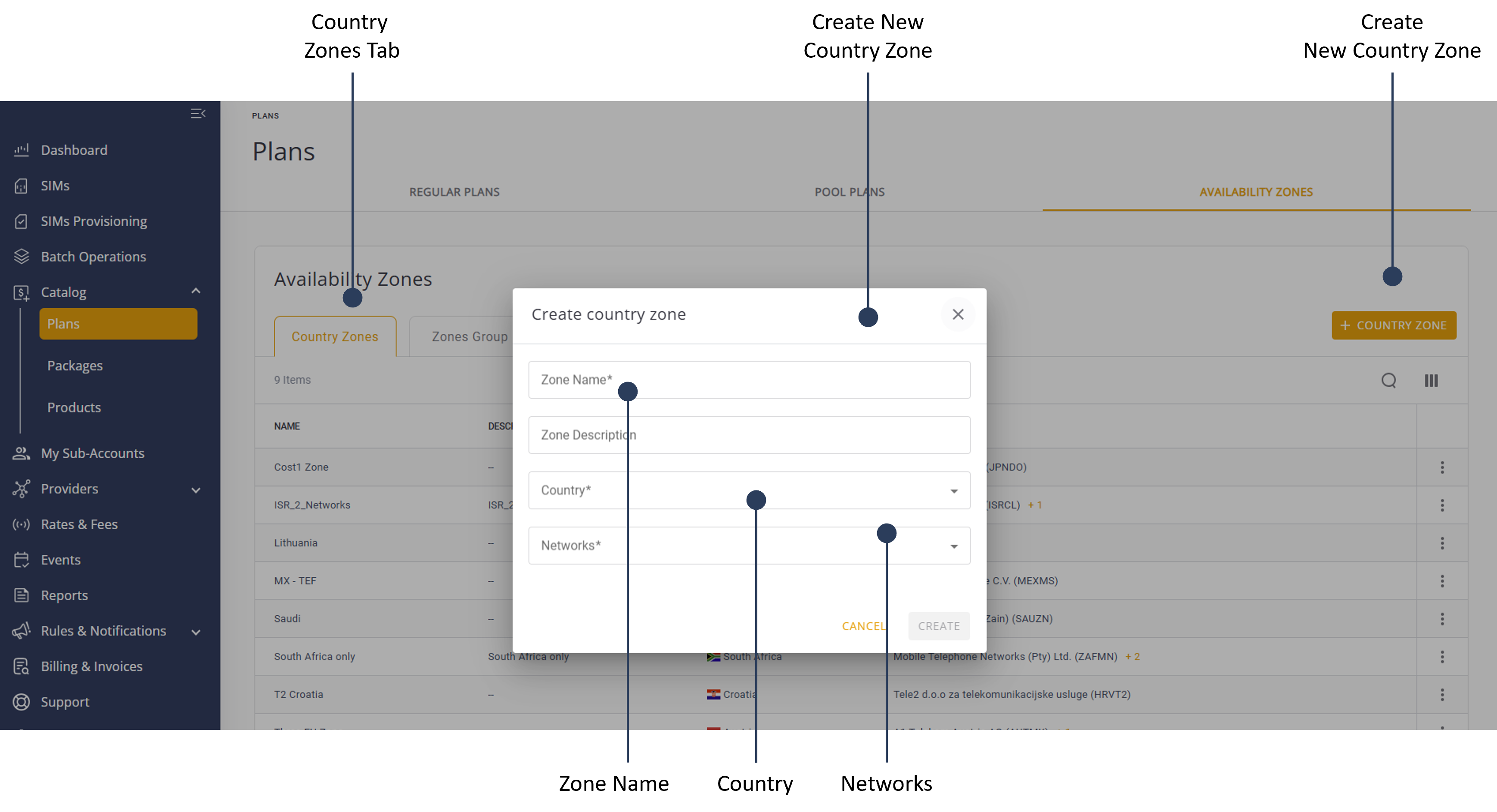
To create a Country Zone, do these steps:
- Select Catalog |Plans from the Navigation sidebar.
- Select the Availability Zones tab.
- Select the Country Zones tab.
- Click +Country Zone to display the country zone properties dialog box.
- Click Zone Name field and type a zone name.
- Click the Zone Description field and type a zone description (optional).
- Click the Country field and select a country from the list.
- Click the Network field and select one or more available networks.
- Click Create to display the Country Zone in the Availability Zones page.
NOTE: To attach this zone to a plan, you must first assign it to a Zone Group. You must do this even if there is only one Zone.