Edit Sub-Account
To edit a Sub-Account do these steps:
- Select My-Sub Account from the sidebar menu.
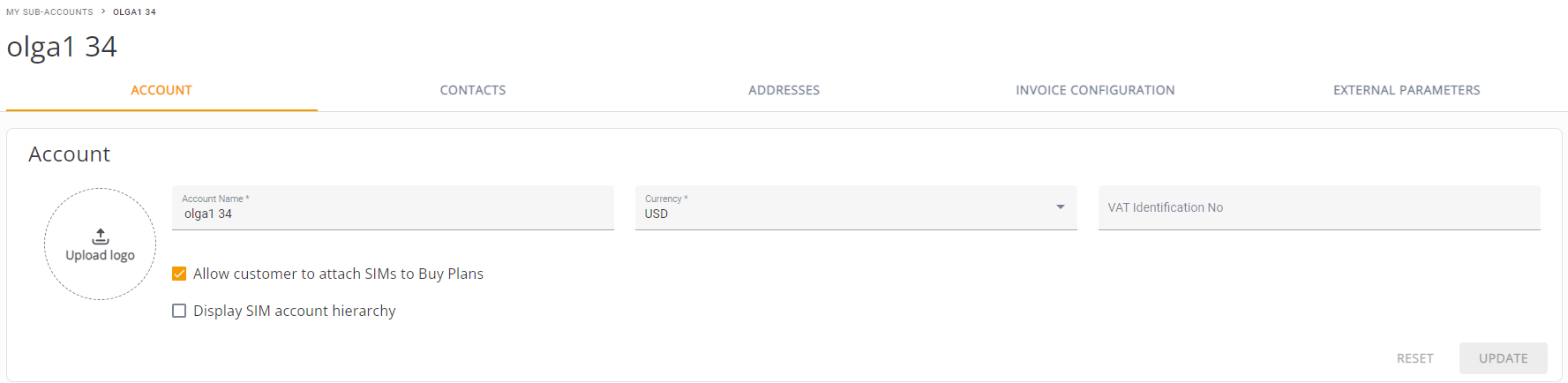
- Click an account listed in the Sub-Account table. The Sub-Account details are displayed.
- Edit the Sub-Account details and click Update
Here is a screen capture of the Sub-Account Details page.
Edit Contact
To edit a contact, do these steps:
- Select My-Sub Account from the sidebar menu.
- Scroll the list of accounts and click the Options icon for a selected account.
- Click Edit to display the account details page.
- Select the Contacts tab.
- Edit the contact details and click Save Changes.
Edit Address
To edit an address, do these steps:
- Select My-Sub Account from the sidebar menu.
- Scroll the list of accounts and click the Options icon for a selected account.
- Click Edit to display the account details page.
- Select the Addresses tab.
- Edit the contact details and click Save Changes.
Billing & Invoice
To edit billing and invoice information for a sub-account, do these steps:
- Select My-Sub Account from the sidebar menu.
- Scroll the list of accounts and click the Options icon for a selected account.
- Click Edit to display the account details page.
- Select the Billing & Invoice tab.
- Edit the billing and invoice details and click Update.