Login on Behalf
The Login on Behalf feature enables a parent super admin to access the system on behalf of a sub-account user. With this functionality, the parent super admin gains temporary access to the sub-account and can perform actions, view data, or manage settings as if they were logged in as the sub-account user.
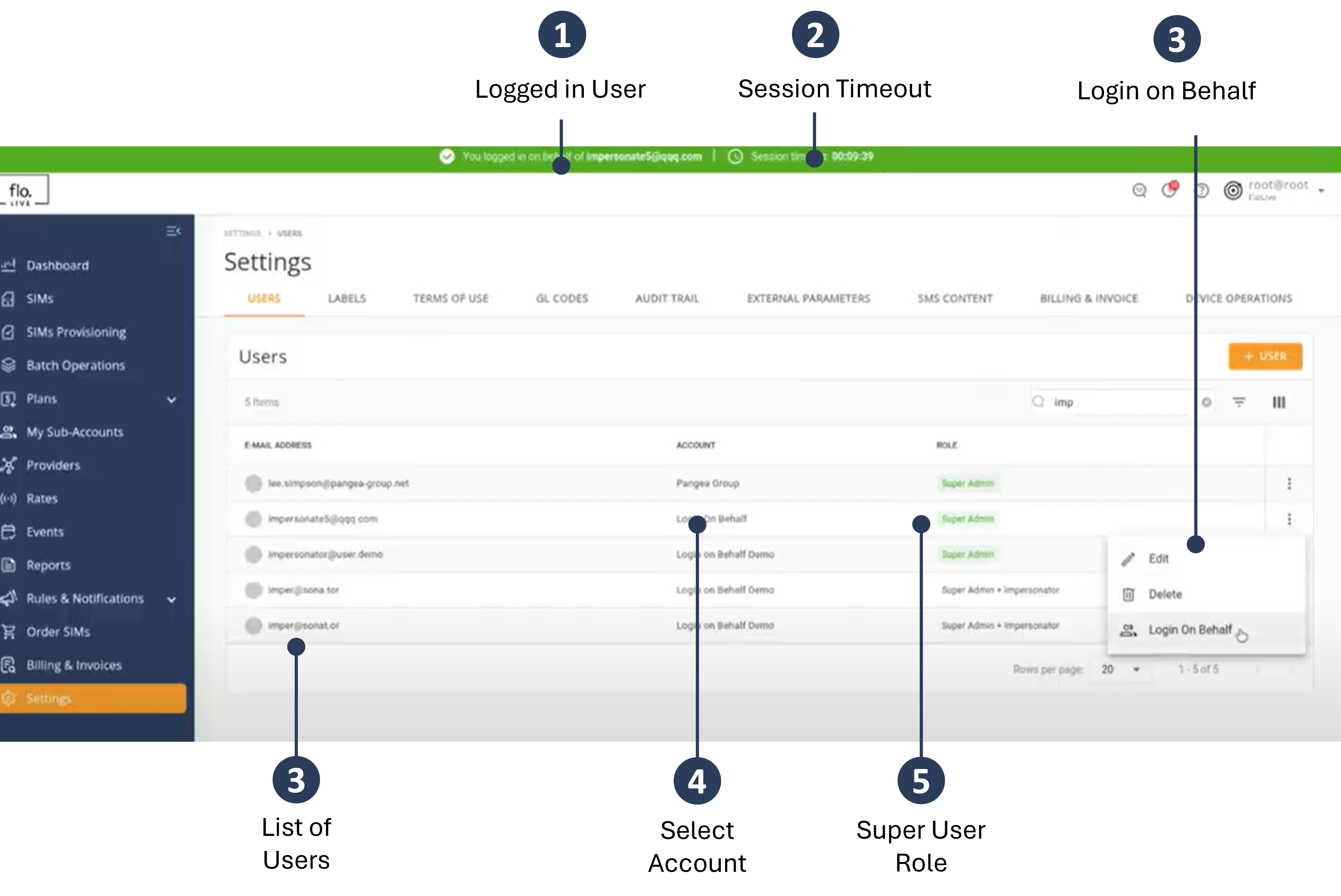
An example of the Login On Behalf screen is shown here.
Preconditions
Make sure these conditions are met before you use Login On Behalf.
| Condition | Description | |
|---|---|---|
| 1. | User Permissions | The "Impersonator" must be logged in as a Super Admin. |
| 2. | Account Type | The account must be a Connectivity Service Provider (CSP) Account |
| 3. | User Token | The user must be registered in the system and have a valid Access and Refresh SSO token. |
| 4. | MFA Status | The user Multi-Factor Authentication must be enabled or set as mandatory. |
| 5. | Activity Status | The user must complete all assigned actions to enable Super Admin access. |
Sub-Account Setup
To setup a sub-account for the Login On Behalf feature, do these steps:
- Select an existing sub-account or create a new one.
- Navigate to the account and settings enable the Connectivity Service Provider option.
- Enable the Allow Login on Behalf option.
- Set the MFA option to Enabled or Mandatory.
- Click Save to update the account settings.
NOTE: If the MFA option is set to Disable then the Allow Login On Behalf option is also disabled.
Super Admin Setup
To define the Super Admin permissions for the Login On Behalf feature, do these steps:
- Select Settings to display a list of users.
- Select a Super User defined in the table and click the Actions icon.
- Click Edit to display the Super Admin details.
- Role Type and select Super Admin + Impersonator.
- Click Save to update the user role settings.
Login On Behalf Via User Account
To Login On Behalf from the user account , do these steps:
- Navigate to My Account on the top bar menu.
- Select My Account | Login On Behalf.
- Enter a user email address and click Login.
Login On Behalf Via System Settings
To Login On Behalf from the system settings, do these steps:
- Select Settings from the sidebar menu.
- Scroll the list of accounts and click the Actions icon for a selected account.
- Click Login On Behalf.
- Enter a user email address and click Login.
Session Timeout
When a Super Admin is logged in on behalf of a user, a green notification bar is displayed at the top of the screen. The notification bar contains the User ID and the Session Timeout.
Audit Trail
The Audit Trail for the Login on Behalf feature provides a comprehensive record of all actions performed by the parent super admin when accessing the system on behalf of sub-account users. The audit trail logs each login session initiated by a super admin and display these details:
- Specific name of the user and sub-account.
- Time and date of access including duration of session.
- Any action done by the Super Admin (e.g. data modifications and configuration settings etc.)
Logout On Behalf
To logout on behalf, do these steps:
- Navigate to My Account on the top bar menu.
- Select My Account | Logout On Behalf.