Create Filter Sets
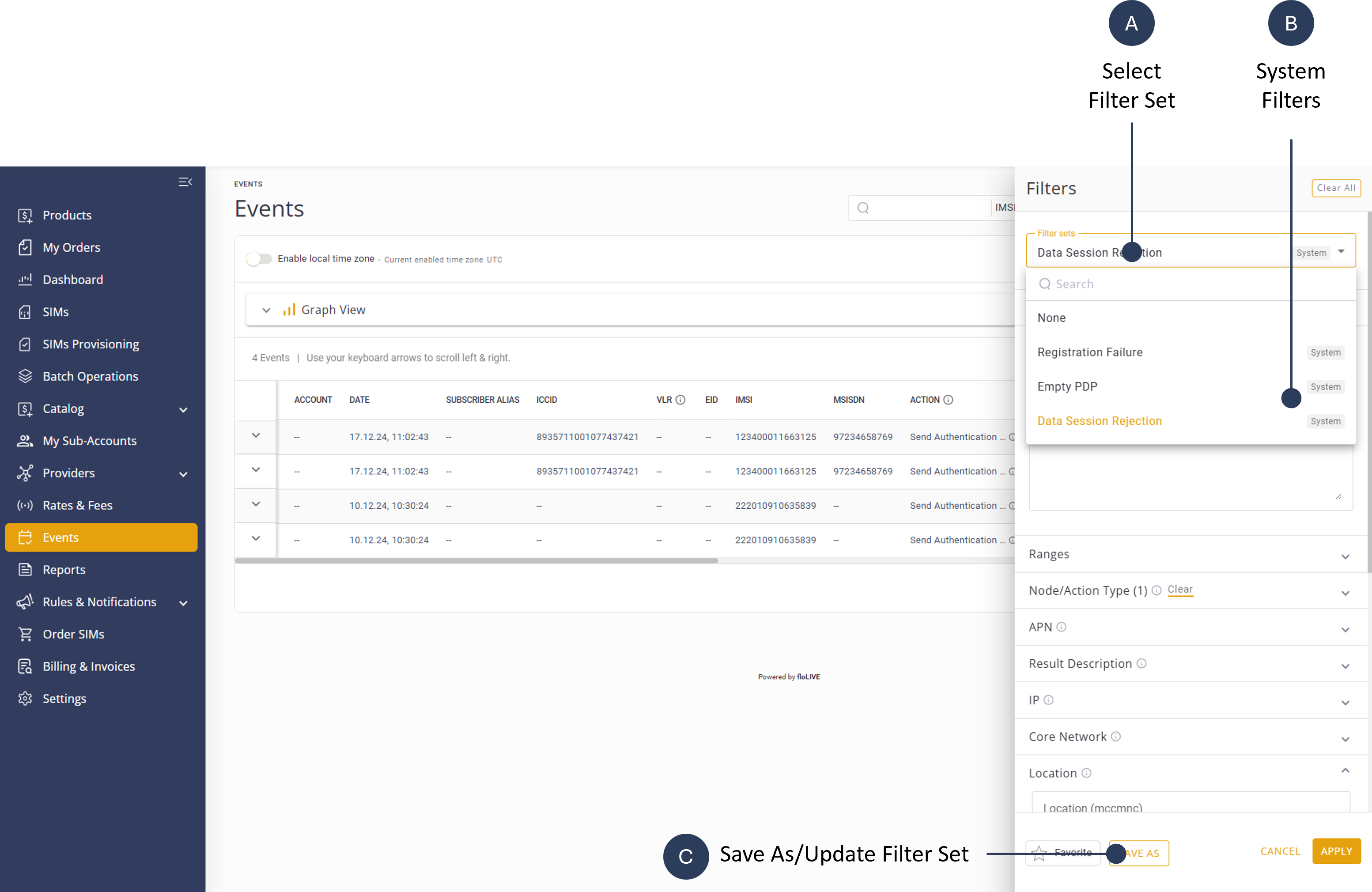
Users can mark and save frequently used Filter Sets. The CMP Portal supports two types of Filter Sets:
- System Filter Set: Predefined system filters help users to quickly identify common problems like empty sessions and billing rejections.
- Custom Filter Set: Users can create, edit, delete, and save custom filters to improve workflow efficiency. Filters can be created for personal use or made visible for use by other users in your organization.
A screen capture of the Filter Set options is shown here.
Create Filter Set
To create a new filter set, do these steps:
- Select Events from the sidebar Menu.
- Click the Filter icon to display the Filter sidebar.
- Select one or more filters to include in your Filter Set.
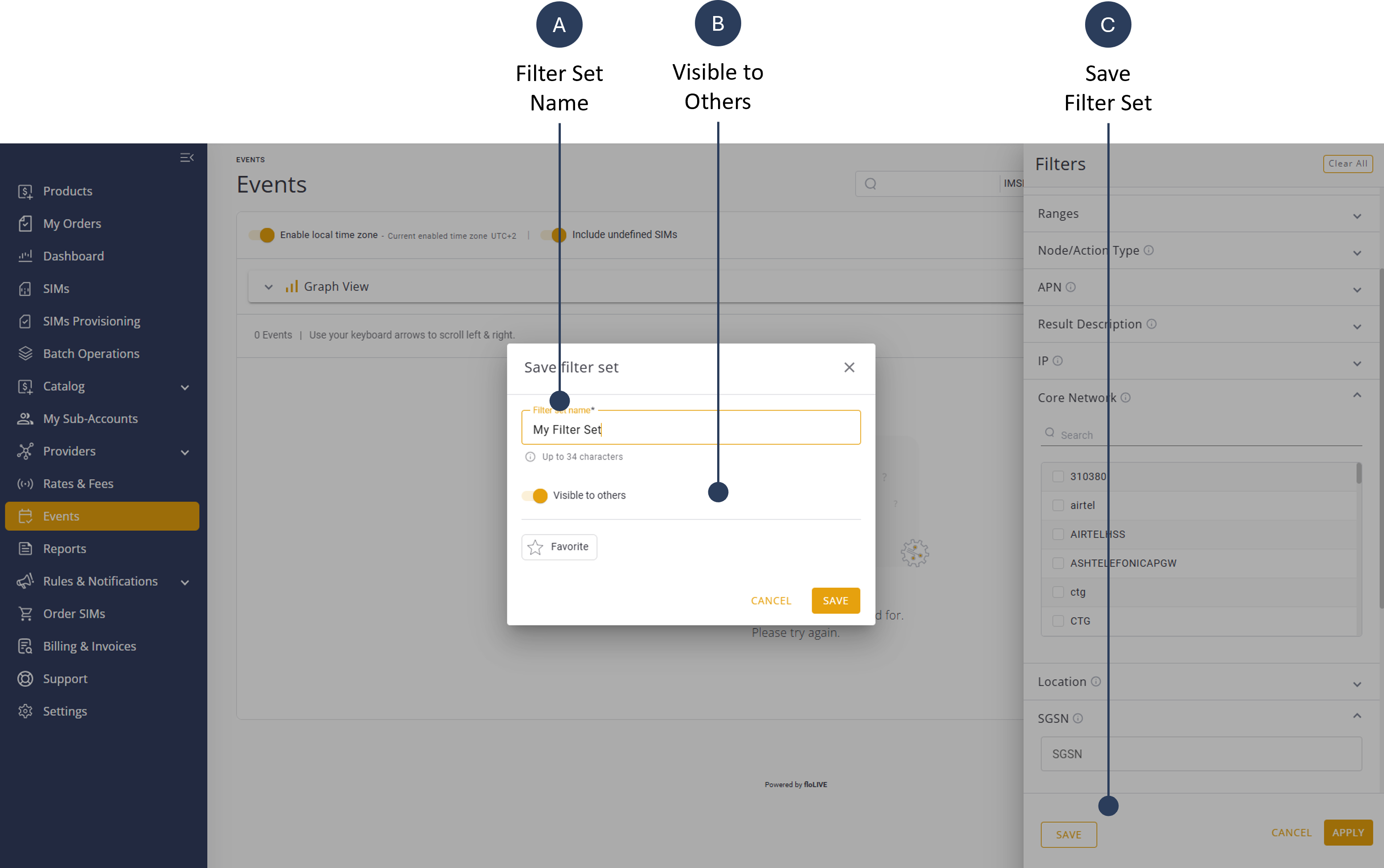
- Click Save to display the Save Filter Set dialog box.
- Enter a Filter Set Name.
- Select the Visible to Others toggle button (optional). Filters that are marked as visible to others are displayed with special icon.
- Select the Favorite option to add this filter to your favorite filter list (optional).
- Click Apply to save Filter Set.
A screen capture of Save Filter Set dialog box is shown here.
Update Filter Set
To update a Filter Set, do these steps:
- Select Events from the sidebar Menu.
- Click the Filter icon to display the Filter sidebar.
- Select a Filter Set from the list.
- Select one or more filters to include in your Filter Set.
- Click Update to update the Filter Set.
TIP: Click Save As and enter a name to create a new Filter Set.