Upload and Execute Batch File
The upload and execution of a batch file includes these three steps:
- Prepare CSV File: Create a structured CSV file with the specific details of the batch operation, ensuring columns are in the correct order for the selected operation type.
- Upload CSV File: Navigate to the Batch Operations section, name the batch, select the operation type, and upload the prepared CSV file for validation and creation of the batch.
- Execute Batch Operation: Run the entire batch or execute individual operations, monitoring progress and ensuring completion within the system.
A screen capture of the Upload File dialog box is shown here.
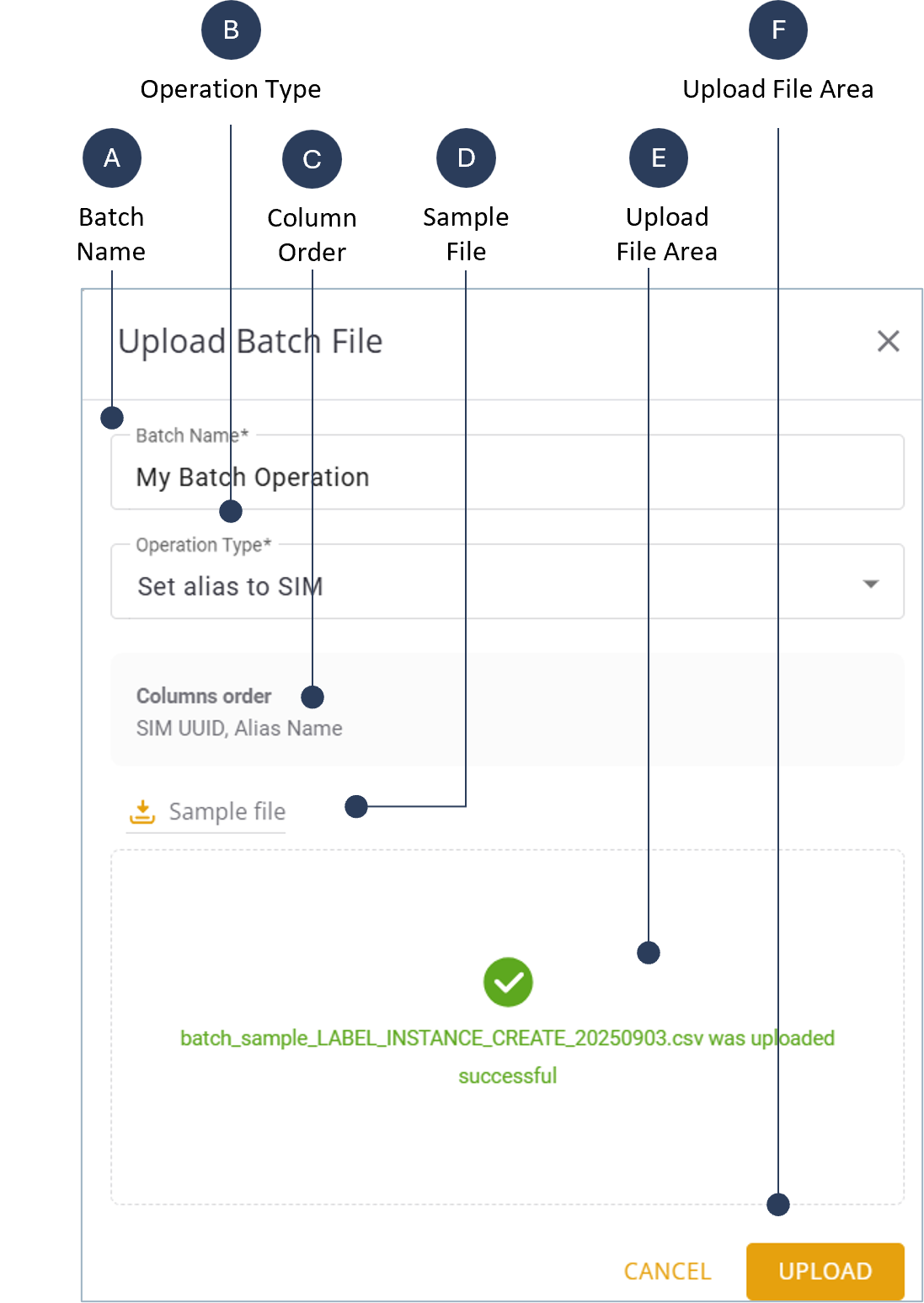
Step 1: Prepare CSV File
Before you upload a new batch file, you need to prepare a CSV file that contains the appropriate data based on the type of operation you choose.
To prepare a CSV file, do these steps:
- Select Batch Operation on the navigation sidebar.
- Click Upload to display the Upload Batch file dialog box.
- Enter a name in the Batch Name field (mandatory).
- Select the appropriate Operation Type.
- Click Sample file to download a CSV to your computer.
- Open the downloaded CSV file and add your data.
- Save the CSV file for use during the upload process.
IMPORTANT: Each Sample CSV file contains the correct data structure for the selected operation. Make sure you keep the columns in the proper order when you prepare your CSV data file.
TIP: For SIM related batch operations you can export data to a CSV file directly from the SIM table.
Step 2 : Upload CSV File
To upload a new batch file, do these steps:
- Select Batch Operation on the navigation sidebar.
- Click Upload to display the Upload Batch file dialog box.
- Enter a name in the Batch Name field (mandatory).
- Select the appropriate Operation Type.
- Click Browse to locate your CSV file.
- Select your CSV file and click Open.
- Click Upload when your CSV file is displayed in the Upload Batch File dialog box.
Step 3: Execute a Batch Operation
To execute an entire batch operation, do these steps:
- Select Batch Operation on the navigation sidebar.
- Select a batch operation from the list and click Execute..
- Track the progress as the system processes the batch in small chunks.
NOTE: All batch operations are executed asynchronously in a single action.
To execute one operation at a time, do these steps:
- Select Batch Operation on the navigation sidebar.
- Click a batch name in the in the table to display the Record Details page.
- Select an individual operation and click Execute for each item one at a time.
- Track the progress as the system processes each item.